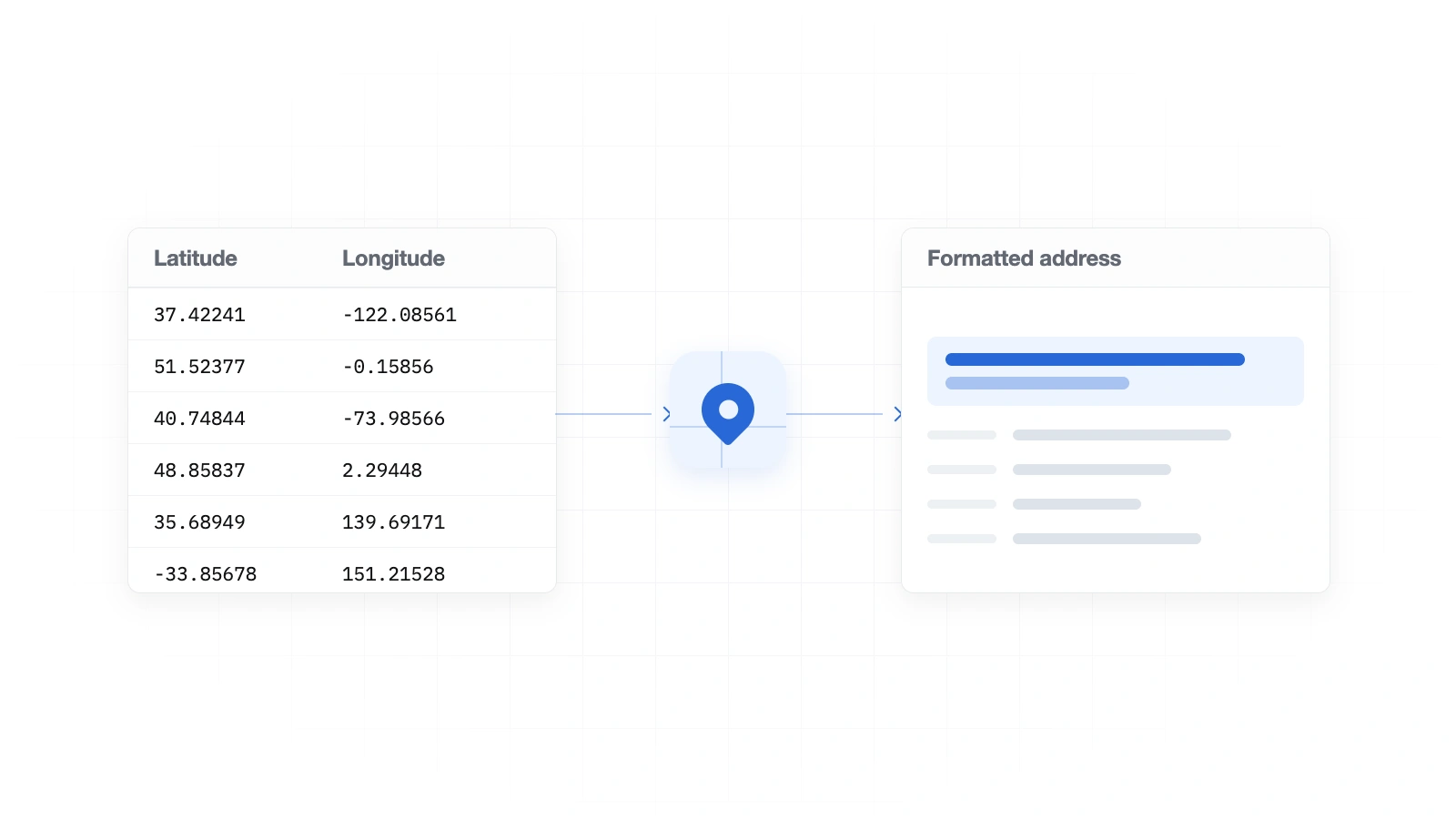
Put latitude in the first column and longitude in the adjacent second column. Select both columns, open Sheets Geocoder, choose Coordinates → address, select the address fields and destination cell, then run the job. Each valid coordinate pair is reverse geocoded into the requested spreadsheet columns.
What is reverse geocoding?
Reverse geocoding converts a geographic point into a readable location. Instead of starting with a street address, it starts with latitude and longitude—for example, 40.748440, -73.985664—and returns a nearby formatted address and structured fields such as city, region, postal code, and country.
This is useful when a spreadsheet contains GPS exports, map pins, field-service check-ins, property coordinates, survey points, or customer locations collected by another system. The returned address describes the provider's best match near the point; it does not prove which building, entrance, parcel, or person the coordinates represent.
1. Prepare latitude and longitude columns
Arrange the input as exactly two adjacent columns, with latitude first and longitude second. Use decimal degrees rather than degrees-minutes-seconds.
| Latitude | Longitude |
|---|---|
| 40.748440 | -73.985664 |
| 37.422408 | -122.085609 |
| 51.523767 | -0.158555 |
- Latitude
- A number from -90 to 90. Positive is north; negative is south.
- Longitude
- A number from -180 to 180. Positive is east; negative is west.
Keep the minus sign on western and southern coordinates. Accidentally removing it can move a point to a different continent. Do not combine both values in one cell, and do not include compass letters, degree symbols, commas, or explanatory text in the numeric cells.
2. Reverse geocode the selected coordinate pairs
- Select two adjacent columns.
Highlight the latitude and longitude rows you want to process. Select latitude first and longitude second, including the header row only if you plan to enable the header option.
- Open Sheets Geocoder.
Choose Extensions → Sheets Geocoder → Open geocoder. The sidebar identifies the active Google account and shows the available free or paid allowance.
- Choose Coordinates → address.
Click Use current selection. Confirm the displayed source range, row count, and example coordinate before continuing.
- Select the result fields and destination.
Choose a formatted address, individual location fields, status, or any combination. Enter the first output cell and inspect the range preview.
- Run the job and inspect the status.
Completed values are written into the chosen output area. Paid background jobs can be closed and synced later without keeping the sidebar open for every request.
3. Choose the address information you need
Reverse geocoding can return a formatted address, city, region, postal code, country, and geocode status. Select only the fields required by the next system in your workflow.
- Formatted address
- A complete readable label for the matched location.
- City
- The locality associated with the result when available.
- Region
- The state, province, or comparable administrative region.
- Postal code
- The postal or ZIP code returned for the nearby address.
- Country
- The country name or provider-supported country value.
- Geocode status
- Whether the row was geocoded, invalid, blank, or unmatched.
To keep the source data untouched, enter a destination such as D1 or H2. The sidebar calculates the full range based on the number of selected output fields. It prevents the destination from overlapping the latitude and longitude columns.
4. Understand what the returned address represents
A coordinate pair is a point, while postal addresses describe named places or addressable features. The closest returned address may be a building, parcel entrance, street segment, neighborhood, postal area, or another geographic feature depending on the point and available data.
- Coordinates near a property boundary may resolve to a neighboring address.
- Points on a road may resolve to an interpolated street number.
- Rural coordinates may return a broader locality rather than a building.
- Ocean, park, or undeveloped-area coordinates may have no street-address match.
- Low-precision coordinates can represent an area hundreds of meters wide.
5. Reverse geocode a large spreadsheet
Each Google account receives 100 free geocodes once, and forward and reverse requests share that allowance. Pro supports up to 75,000 valid geocoding rows per UTC calendar month. Valid coordinate pairs count even when they are duplicated or return no match; blank or invalid pairs are identified before provider processing.
Large paid selections run as background jobs. You can close the sidebar, return to the same spreadsheet later, and use Sync resultsto write completed rows. Avoid sorting, deleting, or moving the selected source rows before synchronization because the job is tied to their original order.
Troubleshoot invalid coordinates and missing addresses
One or both values are missing, nonnumeric, or outside the valid range.
The coordinate pair is valid, but no usable nearby address was returned.
The provider returned a usable nearby location.
An operational problem prevented the row from completing.
If the result is invalid or unexpectedly far away:
- Confirm latitude is the first selected column and longitude is the second.
- Restore any missing minus sign.
- Remove degree symbols, compass directions, labels, and thousands separators.
- Verify latitude is between -90 and 90 and longitude is between -180 and 180.
- Compare the original point with a trusted map before assuming the returned address is wrong.
If a valid coordinate pair repeatedly produces an implausible result, send a non-sensitive example and the exact row status to support.
Common reverse-geocoding questions
Can Google Sheets convert coordinates to an address without a formula?
Yes. Sheets Geocoder performs the lookup from its sidebar and writes the requested address fields into ordinary spreadsheet cells.
Do I need my own reverse-geocoding API key?
No. Provider access is managed by Sheets Geocoder. Users never paste a Google Maps or Radar credential into a sheet or Apps Script project.
Can I return only the formatted address?
Yes. Every output field is selectable. Choose only Formatted address if city, region, postal code, country, and status are not needed.
Does reverse geocoding identify the owner or resident?
No. It returns geographic address data, not ownership, occupancy, customer identity, or proof that a person was present at the point.