Select the address rows in Google Sheets, open Sheets Geocoder from the Extensions menu, choose Address → coordinates, select the output fields and destination cell, and run the job. The add-on writes latitude and longitude back to your sheet and does not require you to configure a Maps API key.
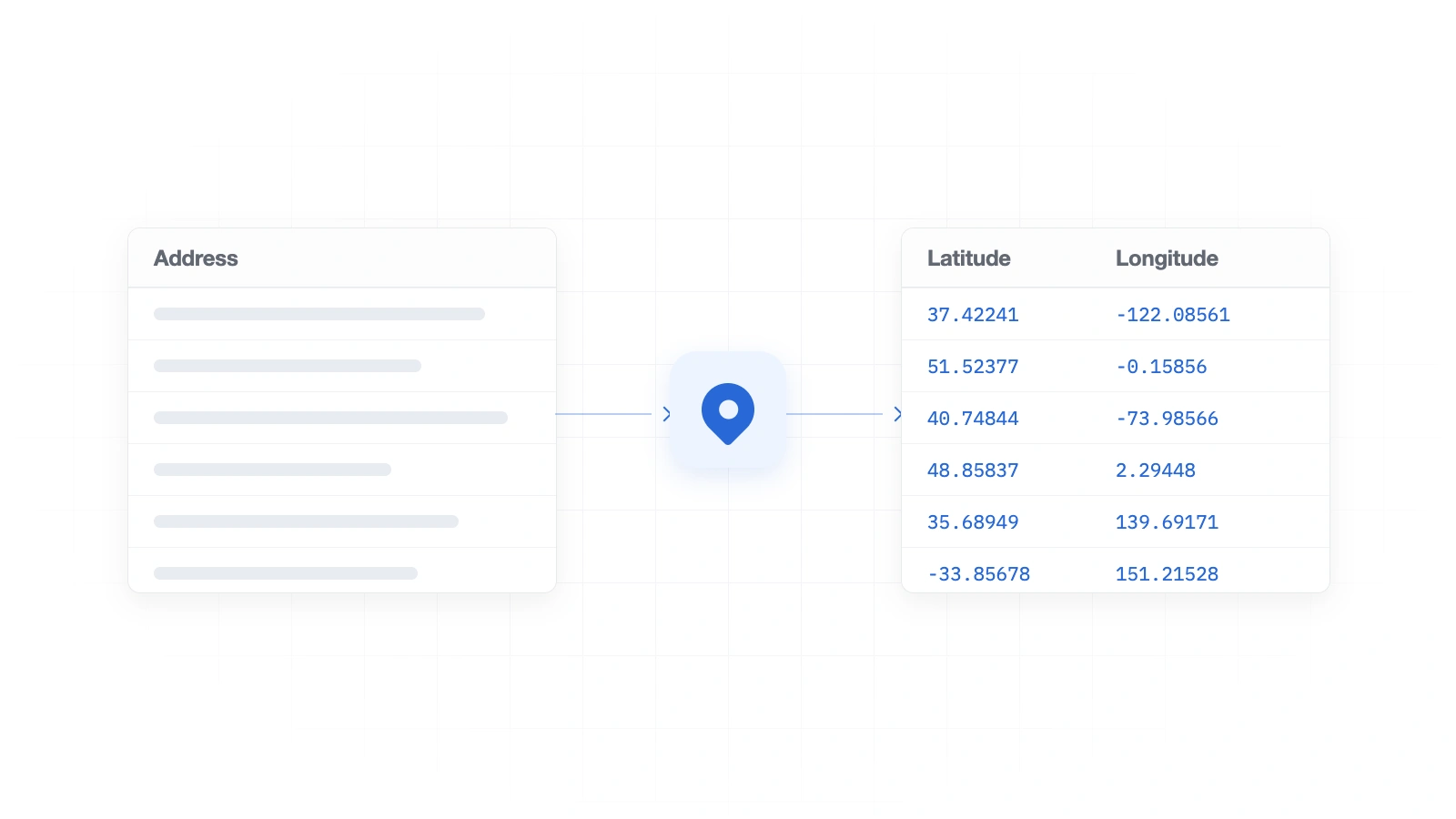
What does it mean to geocode an address?
Forward geocoding converts a written location—such as a street address, landmark, city, or postal code—into geographic coordinates. The result is normally a latitude and longitude pair that can be used in mapping software, a CRM, territory analysis, delivery planning, or any system that accepts coordinates.
For example, geocoding 1600 Amphitheatre Parkway, Mountain View, CAreturns a point near 37.422408, -122.085609. The exact coordinates can vary between mapping datasets, and incomplete inputs may resolve to a street, postal code, or city rather than a building. Geocoded coordinates should therefore be reviewed before they are used for legal, emergency, safety-critical, or navigation decisions.
1. Prepare your address data
Sheets Geocoder accepts either one combined-address column or several adjacent address columns. A combined column is the simplest option:
| Address |
|---|
| 1600 Amphitheatre Pkwy, Mountain View, CA 94043 |
| 350 5th Ave, New York, NY 10118 |
| 221B Baker St, London NW1 6XE, United Kingdom |
If your data is already separated, keep the fields beside one another. The add-on joins selected columns from left to right for each row:
| Street | City | Region | Postal code | Country |
|---|---|---|---|---|
| 350 5th Ave | New York | NY | 10118 | US |
- Use one row per location.
- Keep selected address fields in adjacent columns.
- Include a city, region, postal code, or country when an address could be ambiguous.
- Preserve leading zeroes in postal codes by formatting that input column as text.
- Remove notes, phone numbers, internal IDs, and delivery instructions from address cells.
2. Geocode the selected rows
- Select the address range.
Highlight the rows you want to process. Include all adjacent address-component columns if the address is split across fields. Avoid selecting an entire sheet when only one populated range is needed.
- Open the add-on.
In Google Sheets, choose Extensions → Google Sheets Geocoder → Open geocoder. The sidebar signs in with the active Google account and displays the available allowance.
- Choose Address → coordinates.
Select the forward-geocoding mode, then click Use current selection. Confirm that the source range and sample value shown in the sidebar match the intended data.
- Configure the output.
Choose the output fields, confirm whether the selection has a header, and enter the first output cell. The sidebar previews the complete destination range before anything is written.
- Run and review.
Start the job and review the status summary. Paid jobs continue in the background and can be synced back into the sheet later, so the sidebar does not need to remain open for a large batch.
3. Choose only the output columns you need
Forward geocoding can return latitude, longitude, formatted address, city, region, postal code, country, and geocode status. Each field is optional. For a simple mapping import, select only Latitudeand Longitude. For data cleanup or territory work, add the normalized location fields and status.
- Latitude
- North–south position, between -90 and 90.
- Longitude
- East–west position, between -180 and 180.
- Formatted address
- The provider's normalized, readable version of the matched location.
- City and region
- Useful for grouping, filtering, and territory assignment.
- Postal code and country
- Structured geographic fields when available from the match.
- Geocode status
- A row-level outcome such as Geocoded, No address, or No match found.
Write results to a specific area
Enter an A1-style destination such as F1 or J2in the output start field. The preview shows the exact range the selected output fields will occupy. Sheets Geocoder rejects an output range that overlaps the source selection. If the default destination immediately to the right contains data, the add-on inserts columns so existing values are shifted rather than overwritten.
4. Understand the result for every row
Include the status field while cleaning a new dataset. It distinguishes a successful result from input that was skipped or could not be matched.
The provider returned usable coordinates.
The input row was blank after the selected fields were joined.
The request was valid, but no usable location was returned.
The row could not be completed because of an operational error.
5. Process hundreds or thousands of addresses
The first 100 valid geocoding rows are free once per Google account. Free rows are processed in smaller foreground batches. Active Pro accounts can process up to 75,000 valid rows per UTC calendar month; those jobs run through the secure background workflow and can be closed, reopened, and synced later.
Blank rows are skipped, but each valid address row counts toward the applicable allowance even if it is duplicated or returns no match. If a job pauses because a usage limit is reached, processed rows remain in place. For workloads above 75,000 rows per month, contact support about an Enterprise plan rather than splitting the same workload across accounts.
Why did an address return “No match found”?
A no-match result usually means the input is incomplete, ambiguous, or outside the provider's useful coverage. Before retrying, check the row for missing locality information and typographical errors.
- Add the city, region, postal code, and country instead of submitting a street name alone.
- Use the building number and complete street name when available.
- Remove apartment notes, access instructions, customer names, and phone numbers.
- Spell out ambiguous locations instead of relying on an internal abbreviation.
- Confirm that the selected range includes every intended address-component column.
Do not repeatedly submit the same unchanged value: a valid no-match request still counts. If a complete, real address continues to fail, send a small non-sensitive example to support.
Common questions about geocoding in Google Sheets
Can I geocode addresses in Google Sheets without an API key?
Yes. Sheets Geocoder manages the provider connection for both free and paid jobs. You do not create, paste, or secure a Google Maps or Radar API key.
Can I use several address columns?
Yes. Select adjacent columns such as street, city, region, postal code, and country. The values are joined from left to right for each row.
Will the add-on overwrite existing columns?
The sidebar previews the output range and prevents it from overlapping the source. At the automatic destination, occupied columns are shifted safely instead of overwritten.
What spreadsheet access does the add-on request?
It requests access to the current spreadsheet, not every file in Google Drive. Only cells selected for a job are sent for geocoding. See the privacy policy for the complete data flow.